


Video Background Changer
3.038.00 Reviews
App Specs
- Version
- 3.2.0
- Updated On
- License
- Free
- Downloads
- 100,000+
- Developer
- Happy Coder
- Categories
- Beauty
- Platform
- Android
Screenshots
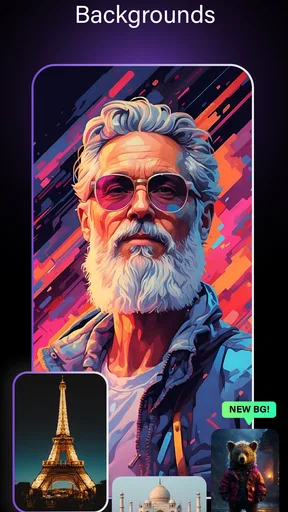
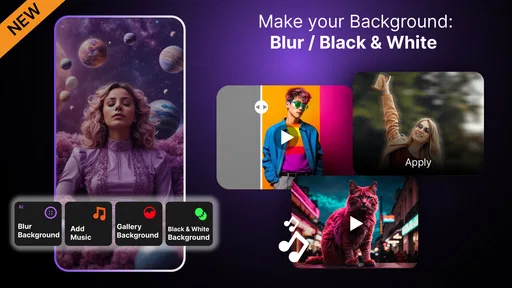
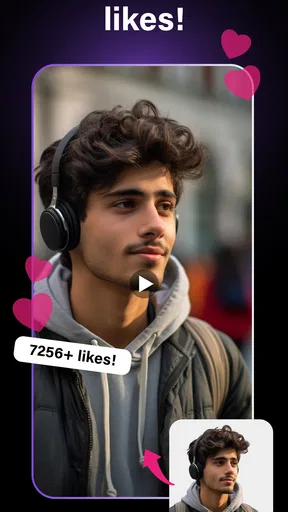
 Analysis by AppCompare
I look at Video Background Changer as a focused creative tool: its main appeal is the chance to put a new setting behind a person in a clip without learning a desktop editor first. That can be useful for a quick social post, a playful message to friends, or a simple demonstration filmed at home. It is a beauty-category app from Happy Coder, and its central idea is easy to grasp: separate the subject from the scene, then make the background feel different. My advice to a first-time user is to start with one short, well-lit clip and a simple replacement scene. That gives you a fair test of the editing process before you spend time polishing a longer video.
Getting Started with Video Background Changer
I’d use the first session to answer one practical question: does this app handle the kind of clip I actually want to change? A short recording with one clearly visible person makes that easy to judge, and it keeps the experiment manageable if the cutout needs another try. Once I’ve seen how the subject’s outline holds up while moving, I can decide whether to explore the other editing choices or switch to a tool with more hands-on control.
What to expect before you begin
The app is free to install and is rated for Everyone. It has reached over 100,000 installs, while its average rating is 3.0 from around 830 ratings, so I would approach it with practical expectations rather than assuming every edit will look flawless. The current version is 3.2.0, and it runs on Android 7.0 or later. In-app purchases range from $6.49 to $54.99 per item, which is worth keeping in mind if you are considering paid extras. These details do not change the basic appeal: it is meant to make a specific kind of video edit approachable.
For a beginner, the most reassuring part is that you do not need to understand layers or masks before trying a background change. The idea is simple enough to test: choose a clip where the person is easy to distinguish from the surroundings, then see how naturally the app handles the separation. I would not begin with a busy group scene, fast movement, or a subject wearing clothes close in color to the background. Those are harder conditions for any automatic cutout, and they can make a first attempt seem worse than the tool really is.
Think of the first edit as a small experiment, not a finished production. A plain wall, uncluttered room, or outdoor setting with clear contrast gives the subject-detection process a better chance. If your aim is a polished promotional video with precise edges, controlled lighting, and several carefully timed shots, a desktop editor may be a better fit. If you want to see whether a casual clip can be made more playful in a few steps, this app is a sensible place to start.
Making a first edit that has a chance to work
First things first, downloading the app was a breeze. It’s available on both Android and iOS, so no worries about compatibility. Once you fire it up, you’re greeted with a clean and straightforward interface. Trust me, you won't feel overwhelmed. The app is designed to be user-friendly with intuitive navigation, which is a huge plus for beginners like us.
When you get to the actual clip, make the first choice deliberately: pick a short recording with one clear subject, steady framing, and enough light to see the outline. This is not a guarantee of a perfect result, but it makes it easier to judge whether the replacement looks convincing. A useful test is to pause on a few different moments in the clip, especially when the subject moves an arm or turns their head. A cutout that looks fine in one still frame may show rough edges during motion, so checking more than the opening moment can save you from sharing an edit that only works briefly.
Worth Reading Before You Choose

EA SPORTS FC Mobile 26 Is a Bigger Football Game, but It Takes Time

Flipboard Shows What News Apps Must Do Beyond the Feed

Switching to Android Auto Means Rethinking Your Driving Routine

Google Calendar Makes a Crowded Week Easier to Manage

Ludo King Makes the Most of the Minutes Between Plans

Baby Panda World Brings Quick Play to Modern Phones, but Its Game Library Feels Busy
Once the subject is separated, try a background that suits the original lighting and camera angle. A dramatic scene can be fun, but an obviously mismatched horizon or light direction may make the person look pasted on. For a video call-style update or a quick creator clip, a calm, simple background often looks more believable than a busy image. If you have a background of your own in mind, use one that does not compete with the subject; the point is to make the change clear without turning the frame into visual noise.
The app can also work as a quick creative detour for everyday footage. Imagine you record a short birthday greeting in a cluttered kitchen, then want a cleaner-looking scene before sending it to a family chat. A simple replacement can make the message feel more intentional without requiring a full edit. I would still review the whole clip before sharing: check the subject’s outline during movement and listen to the result if you have changed anything else. A few seconds spent watching the finished video is more useful than judging it from a preview frame.
Exploring the Features
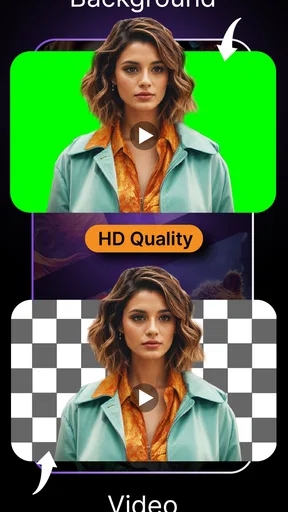
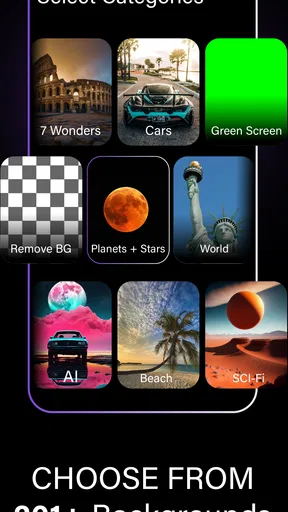
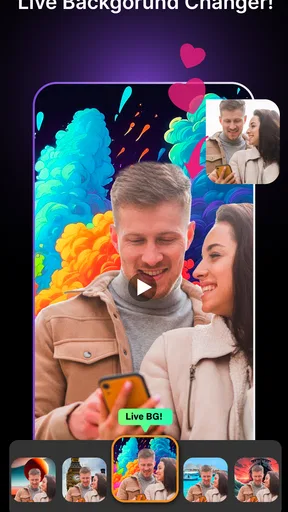
The core feature of the Video Background Changer is, as the name suggests, changing the background of your videos. The app uses advanced AI to detect the subject of your video, allowing you to swap out the background with just a few taps. It’s like magic! You can choose from a variety of preloaded backgrounds or upload your own. Either way, the process is smooth and the results are surprisingly professional-looking.
The main trade-off is between speed and control. An automatic selection is appealing when you want a quick result, but it is not the same as manually refining every edge in a more involved editor. Hair, transparent objects, motion blur, and objects that cross in front of the subject are all situations where cutouts can look less natural. I would treat the AI result as a fast starting point and choose footage that makes its job easier, rather than expecting it to rescue a difficult recording.
There is also a practical way to make your own background choices work better: think about the clip before you record it. Keep the person away from a crowded backdrop, avoid strong shadows that merge with the subject, and leave a little space around the person in the frame. That gives the separation more visual room and helps the replacement feel less cramped. These are small filming habits, but they can matter more than swapping through lots of background options after the fact.
But wait, there’s more! The app doesn’t just stop at background changes. You can also apply filters, adjust video speed, and even add music directly from my library. It’s like a mini editing studio in your pocket. I particularly loved the filter options, which allowed me to give my videos a cinematic feel without much effort.
For a sensible workflow, I would settle the background first, then make any stylistic choices with filters or speed. That order helps you judge the cutout before effects change the overall look. Music is best treated as a final layer: a soundtrack can lift a short clip, but it can also distract from speech, so decide whether the video is meant to be watched for its message or for its mood. If you are making a simple talking clip, keeping the voice easy to hear matters more than adding decoration.
These extra editing options are useful for casual projects because they reduce the need to jump between several apps for every small change. The compromise is that an all-in-one mobile tool may not offer the same precision or organization as a dedicated editor. I would use it for a compact, self-contained edit rather than for a long video with many scenes, detailed timing, or a carefully built audio mix. That distinction helps set a realistic expectation before you invest effort in a project.
Where it fits among other editing choices
Compared with the usual alternatives, this app is most appealing when the background itself is the reason you are editing. A basic phone editor may be quicker for trimming a clip or adding a title, but it may not put subject isolation at the center of the workflow. A full desktop editor is the stronger choice when you need detailed masking, precise color work, or a more complex sequence, though it asks more of you in time and skill. Video Background Changer sits between those approaches: more specialized than a general trim-and-share tool, but easier to approach than a professional editing setup.
That middle ground is especially useful for casual creators who want a single visual change and do not want to learn a large editing interface. It is less compelling if you already have a mobile editor that gives you the exact cutout control you need, or if most of your videos only need trimming and captions. Before paying for extras, I would make a few test edits with different kinds of footage and ask whether the background change is something you will use repeatedly. The in-app purchase range makes it sensible to decide based on your own workflow rather than assuming an upgrade is necessary.
Performance and Usability
Now, let's talk about how the app performs. I tested it on a mid-range smartphone, and the results were impressive. The app runs smoothly, with minimal lag even when working with high-resolution videos. The background replacement feature is quite fast, and the AI does a commendable job of accurately isolating subjects from the background.
For a first-time user, the biggest source of confusion is often not where to tap but how to judge the result. A replacement can look convincing in a still preview and less convincing once the person moves. I recommend watching from beginning to end, paying attention to hands, hair, and the outline where the subject meets the new scene. If the edge looks distracting, a simpler background or a different source clip may be the better fix than adding more filters.
One thing to note is that the app does require a decent amount of storage space, so make sure you have enough room on your device. Also, while the basic features are free, there are in-app purchases for additional backgrounds and advanced editing tools. It’s worth considering if you plan to use the app frequently.
Storage is a practical consideration whenever you are working with video, especially if you keep several versions of a project. I would avoid making repeated exports just to compare tiny changes; settle on a background and a general look first, then create a version you are happy to review. If you are short on space, make a habit of keeping only the source clip and the finished copy you actually want. That simple approach prevents a casual edit from turning into a pile of near-duplicates.
Another question new users may have is whether this is the right tool for every kind of video. I would not choose it for footage where the subject is difficult to distinguish, where multiple people overlap, or where a very clean professional composite is essential. Nor would I expect it to replace a full editing suite for long-form work. Its strength is convenience around a clear subject and a focused background swap; outside that lane, a general editor or a more hands-on masking tool may be a better choice.
Wrap-Up: Is Video Background Changer Worth It?
So, is the Video Background Changer worth your time? In my opinion, absolutely! It’s a fantastic tool for anyone looking to spice up their videos without diving into complicated software. The app’s ease of use, combined with its powerful features, makes it a must-have for both casual users and budding content creators.
Whether you’re creating content for social media or just having fun with friends, this app opens up a world of creative possibilities. Give it a shot, and who knows, you might just discover a hidden talent for video editing!
My more measured recommendation is to try it when you have a specific clip in mind, not simply because you want another general-purpose editor. The app is at its best when the subject is clear, the goal is modest, and a quick visual change will make the video more useful or entertaining. For that first attempt, choose a short recording, use a simple replacement, and review the moving edges before sharing. If the result works for your needs, then explore filters, speed adjustments, and music; if it does not, changing the source footage may be more effective than pushing the edit further.
I would recommend it to someone who enjoys making short social videos, wants to experiment with a different setting, or needs an easy way to make an ordinary clip feel less ordinary. I would steer a precision-focused editor toward a tool with more direct control, and someone who only trims clips toward the editor already built into their phone. For everyone in between, the free starting point makes it approachable, while the moderate average rating is a reminder to judge it by your own footage and expectations. A straightforward first test is the best way to find out whether this particular background-changing workflow belongs in your editing routine.
Pros
- Easy to use with intuitive interface.
- Wide variety of background templates.
- Fast processing and export times.
- Supports multiple video formats.
- No watermark on exported videos.
Cons
- Limited free version features.
- Occasional app crashes.
- Ads can be intrusive.
- Requires internet for full features.
- Limited advanced editing tools.
FAQs for Video Background Changer
What is Video Background Changer, and how does it work?
Video Background Changer is an app designed to help users replace or modify the background in their videos seamlessly. Utilizing advanced AI and chroma key technology, it allows you to select from a variety of backgrounds or upload your own. This makes it ideal for creating professional-looking videos without the need for a green screen.
Is Video Background Changer compatible with all video formats?
The app supports a wide range of popular video formats, including MP4, AVI, and MOV. However, for optimal performance and compatibility, ensuring your video files are in one of the supported formats is recommended. Users can consult the app’s documentation for a comprehensive list of supported file types.
Does Video Background Changer require a powerful device to run smoothly?
While Video Background Changer is designed to be efficient, it does require a moderately powerful device to function smoothly, especially when processing high-resolution videos. Devices with at least 4GB of RAM and a quad-core processor are recommended to ensure optimal performance and prevent lag during editing.
Are there any in-app purchases or subscriptions in Video Background Changer?
Yes, Video Background Changer offers in-app purchases and subscription options. While the basic features are available for free, advanced features like premium backgrounds, HD exports, and ad-free experiences require a subscription. Users can choose from monthly or annual plans depending on their needs.
Can Video Background Changer be used for commercial purposes?
Yes, users can utilize Video Background Changer for commercial projects. However, it’s important to note any licensing agreements related to backgrounds or assets used within the app. Always ensure that you have the rights to any content you plan to use commercially to avoid copyright issues.


